

MachineB2B Supplier Registration Flow
This guide shows the actual supplier onboarding screens and flow so you can clearly present the registration steps, membership plan selection, and post-registration next steps.
Flow Overview
The current onboarding experience is split into five clear steps: choose an account type, select a plan, and then complete the information form.
Visitors first choose between buyer and supplier registration so different roles are not mixed into the same form.
Supplier accounts confirm the membership plan before reaching the information form, making the flow easier to explain and follow.
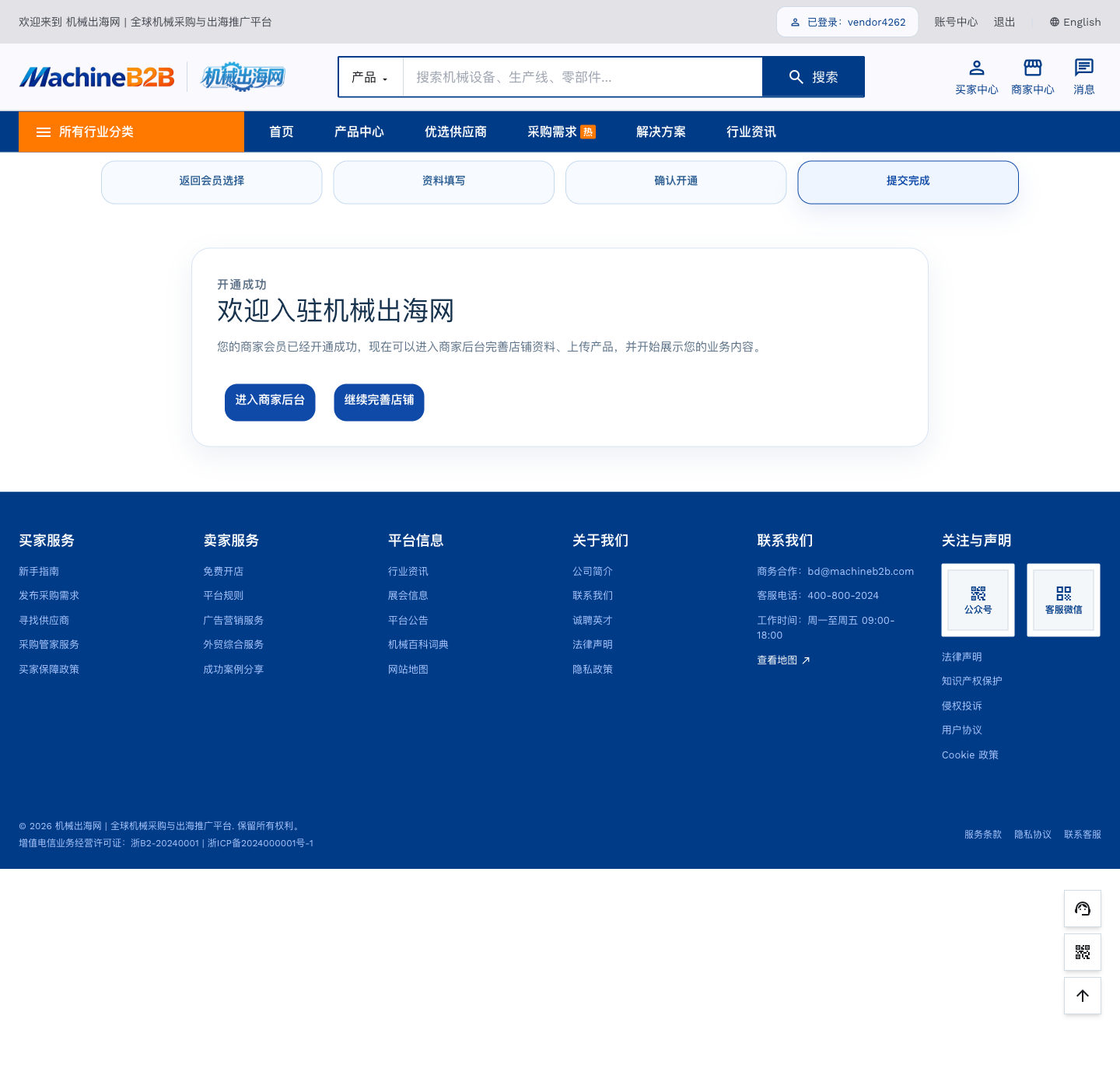
After submission and confirmation, the page provides direct entry to the supplier dashboard and store setup so onboarding can continue immediately.
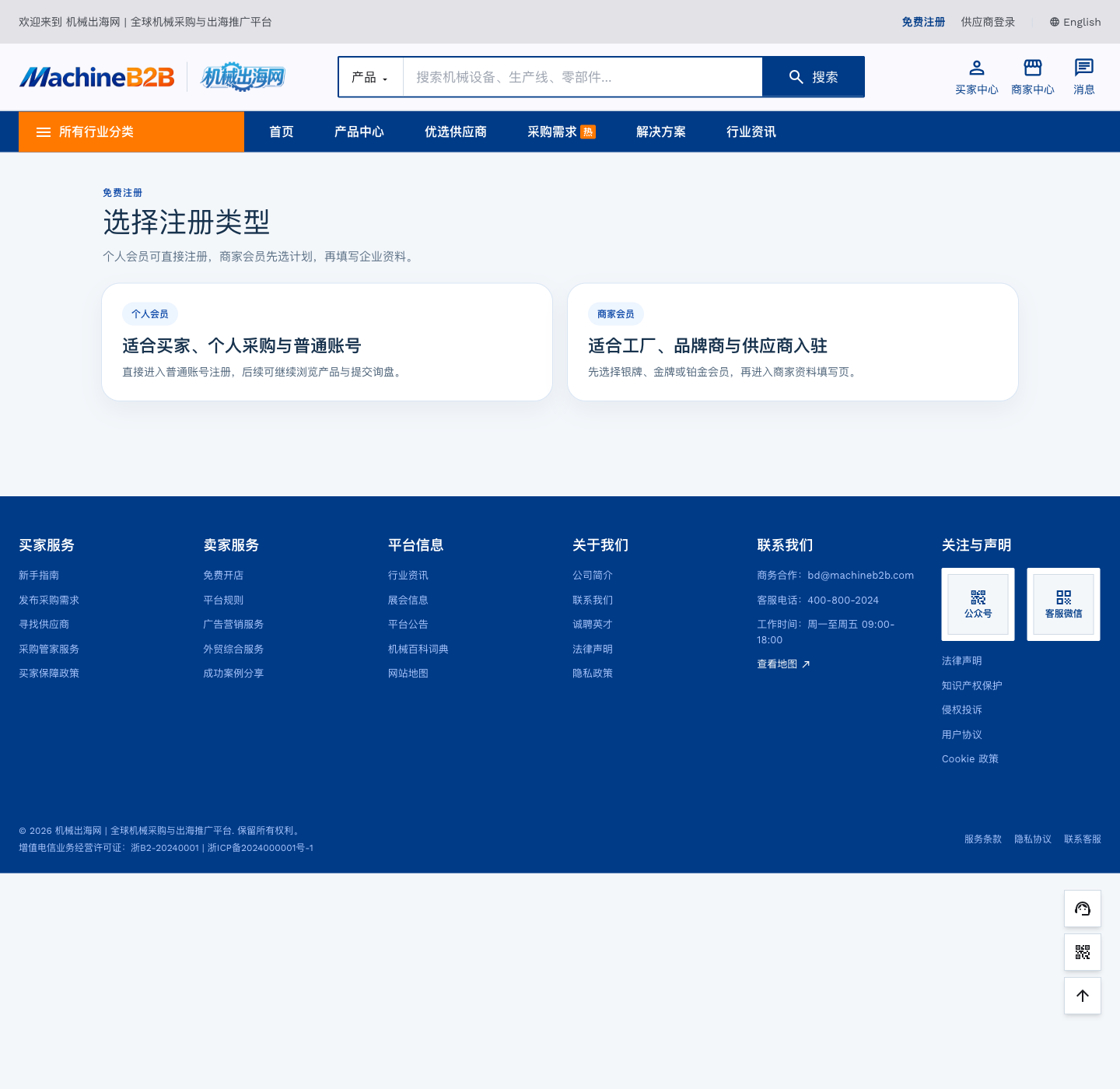
Choose the Registration Type
Users first choose whether they are registering as a buyer account or a supplier account. Factories, brands, and suppliers can go directly to the supplier route.
- Buyer account: suitable for standard and sourcing accounts.
- Supplier account: suitable for suppliers, brands, and factories.
Select the Supplier Membership Plan
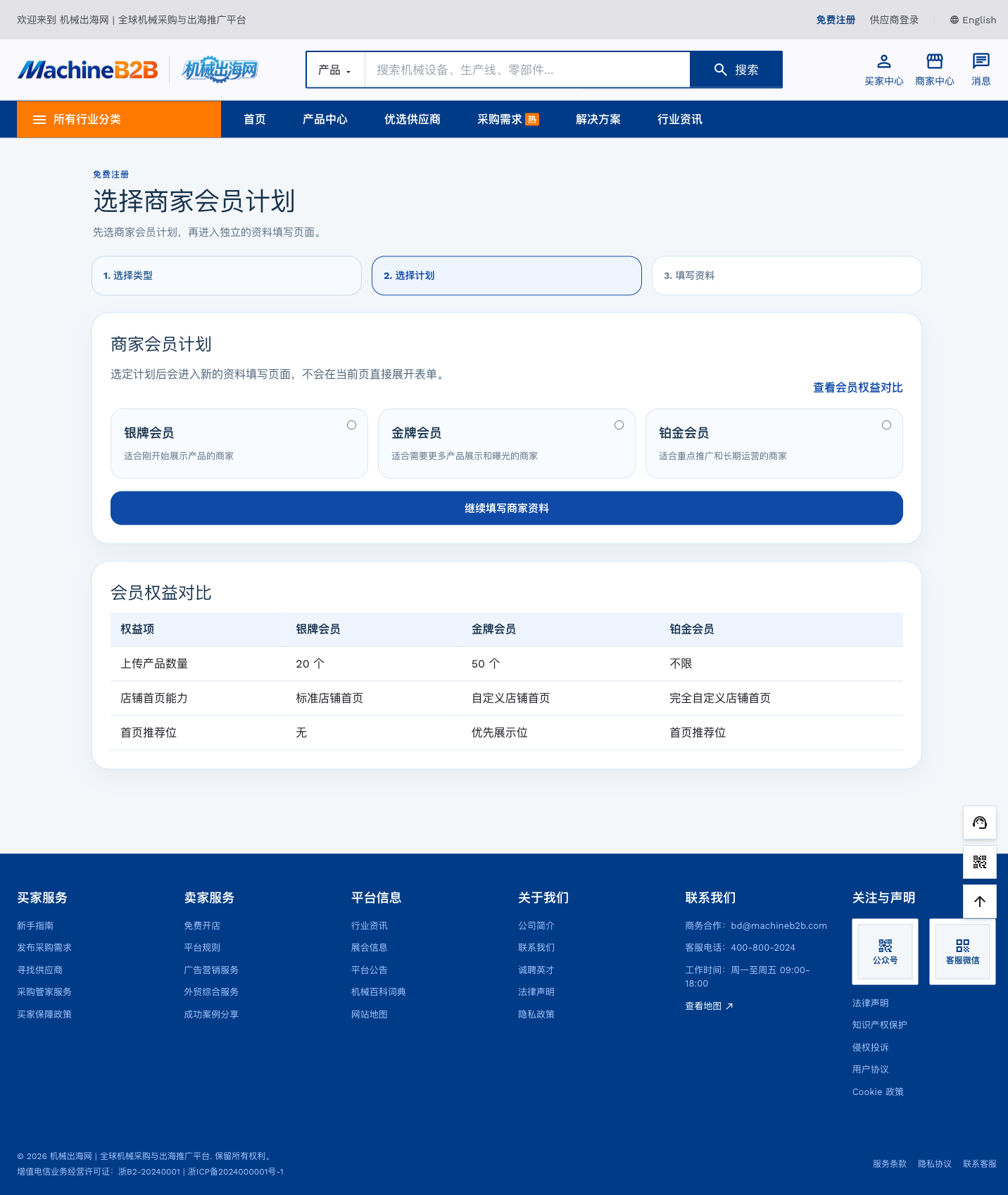
At the second step, suppliers choose a specific membership plan. The page shows positioning and benefit comparisons for each plan so suppliers can choose based on their exposure needs.
- Silver Membership: suitable for suppliers starting to showcase products.
- Gold / Platinum: suitable for suppliers that need stronger exposure or priority promotion.
Fill in the Supplier Information
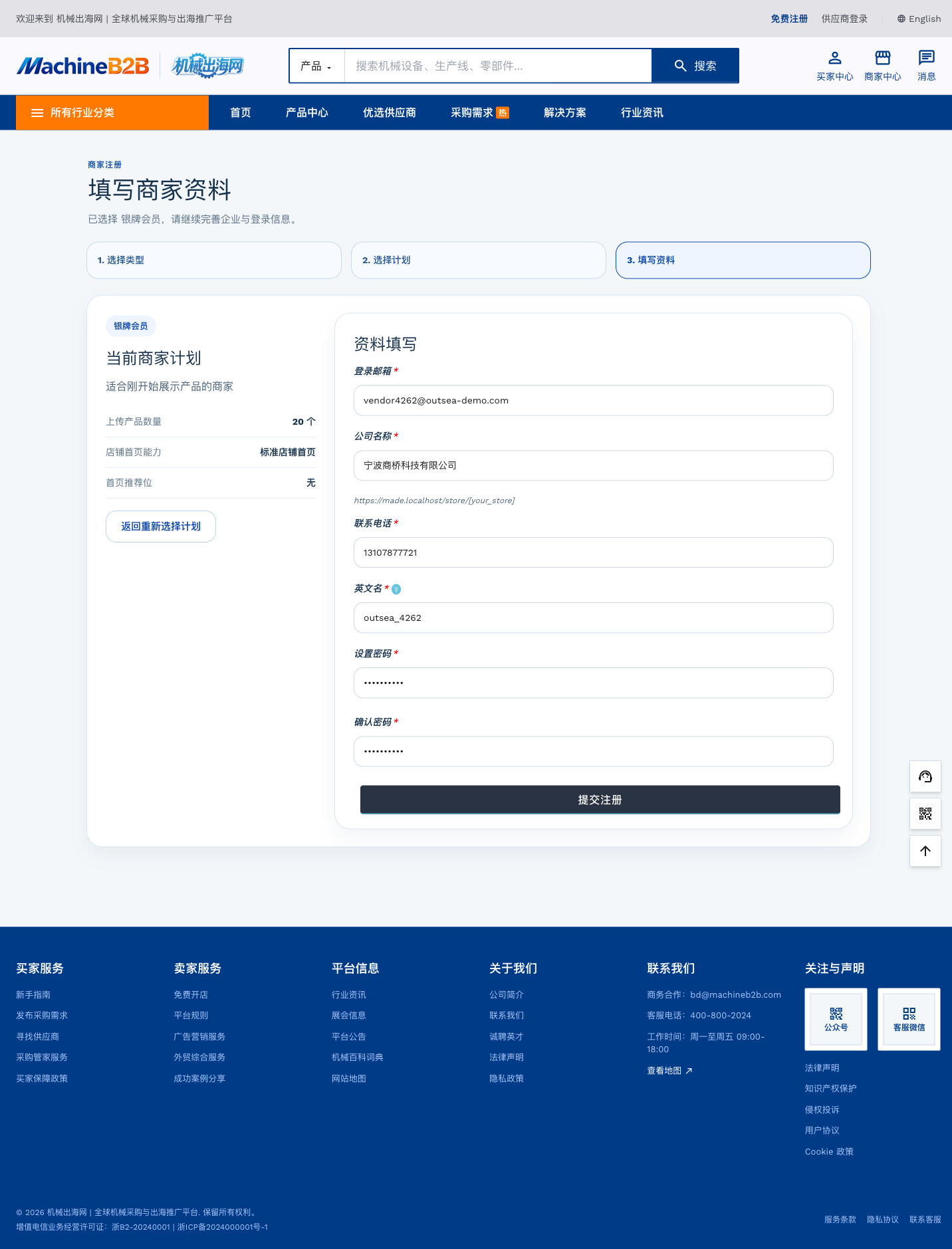
After selecting a plan, the user enters the information form to complete the login email, company name, phone number, English store slug, and password.
- The left side shows the currently selected membership plan.
- The right side contains the company and login fields.
- Users can go back to choose another plan if needed.
Confirm the Activation Details
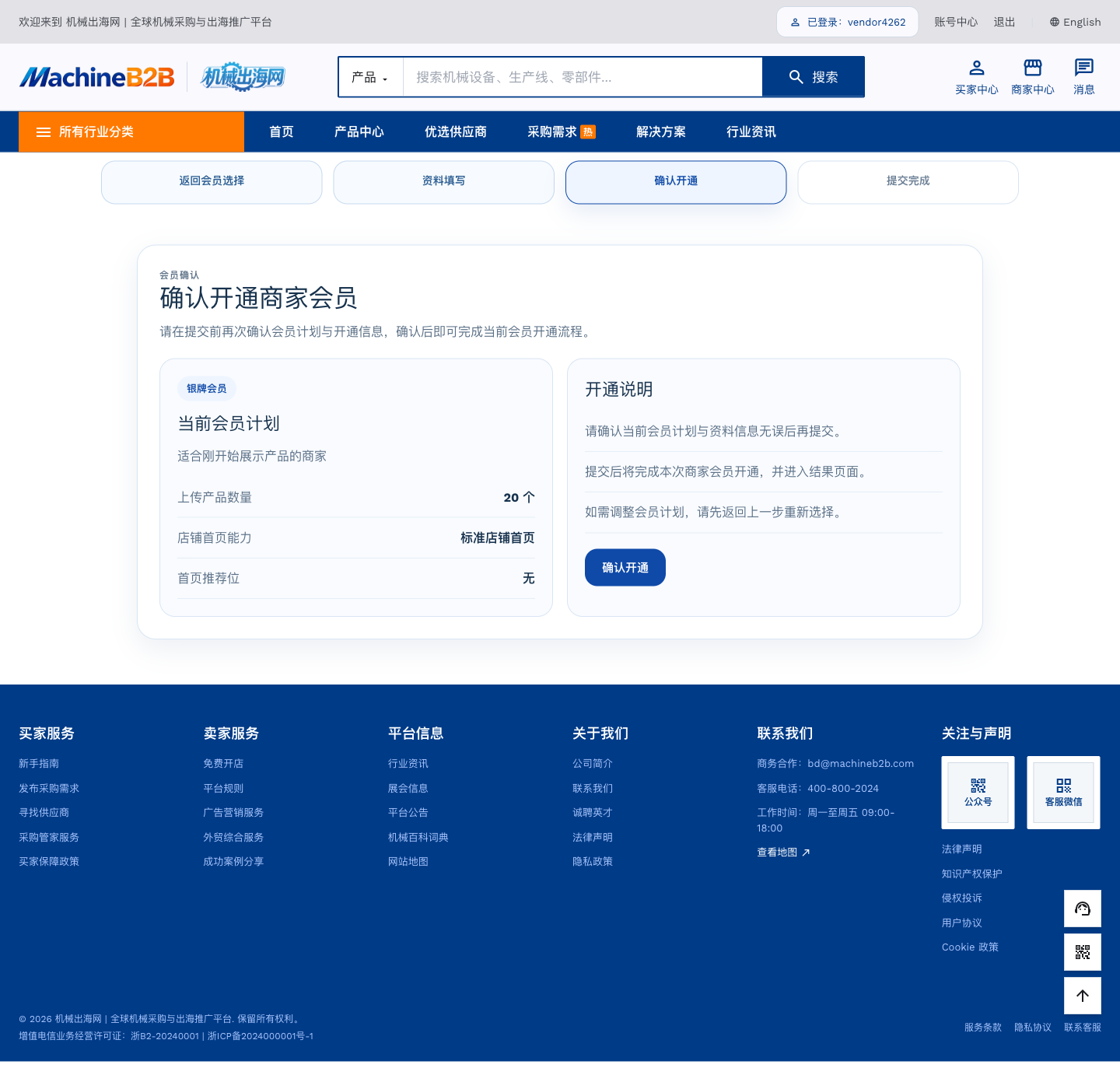
After the information form is submitted, the user enters a confirmation step that shows the selected plan and activation details again before completion.
- If the plan needs to change, users can return to the previous step.
- After confirmation, the flow proceeds to the completion page.
Completion
After activation is completed, the system shows a success state and provides links to enter the supplier dashboard or continue polishing store details.
- Users can enter the supplier dashboard directly.
- They can also open store settings first to continue completing the profile.
Membership Plan Comparison
Suppliers can choose Silver, Gold, or Platinum membership plans, each with different storefront capabilities and product display limits.
- 20 product upload limit
- Standard storefront homepage
- Basic product showcase
- Enquiry support
- 50 product upload limit
- Custom storefront homepage
- Full product presentation
- Priority placement
- Enquiry support
- Unlimited product uploads
- Fully custom storefront homepage
- Homepage recommendation slot
- Dedicated subdomain
- Analytics dashboard
- Enquiry support
After Registration: Enter the Supplier Dashboard
After activation, suppliers can enter the dashboard from the top Supplier Login entry to manage the storefront, publish products, and review enquiries.
After logging in, suppliers can review storefront status, recent enquiries, and platform notices from the dashboard.
Suppliers can add products, edit product details, and manage media in the dashboard. Published products appear on both the storefront homepage and the site-wide catalog.
Store settings cover the storefront name, logo, company profile, and contact details shown on the public supplier page.